How to Use Echo in Ableton Live
Echo is a modulation delay with two independent delay lines, filtering, reverb, and modulation controls. It is included with Live 12 Suite. Begin with an audio or MIDI track that has audible material, then keep Ableton's current Echo reference available while you configure the device.
The source walkthrough was published in 2018, when Echo was introduced with Live 10. This guide uses current Live 12 labels and current Suite availability rather than treating the older video interface as definitive.
Video walkthrough
Add Echo and choose a channel mode
In the Browser, open Audio Effects and drag Echo onto the target track's device chain. For a return track, set Dry/Wet to 100 percent so the return contributes only the processed signal. For an insert effect, begin with a lower Dry/Wet setting and balance the repeats against the unprocessed track.
Use the channel-mode buttons to choose the pattern across the stereo field:
- Stereo gives the left and right delay lines independent stereo outputs.
- Ping Pong alternates the repeats between the two sides.
- Mid/Side processes the centre and side portions of the stereo signal; its delay controls become Mid and Side.
Choose Stereo for a conventional starting point. Select Ping Pong when a moving left-right repeat is useful, or Mid/Side only when the distinction between the centre and edges of the source is deliberate.
Set the repeat timing and feedback
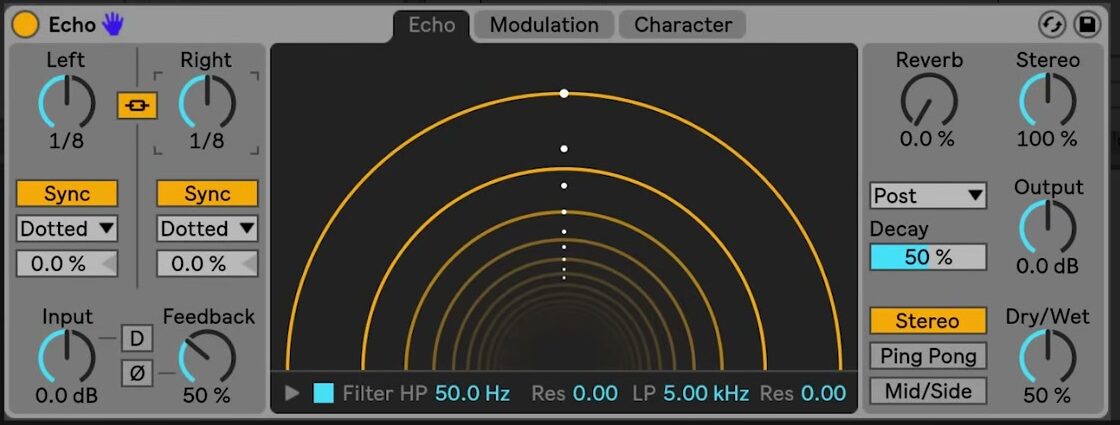
Set the left and right delay lines with Sync on to use beat divisions, or turn Sync off to enter time in milliseconds. In sync mode, use Notes, Triplet, Dotted, or 16th in the Sync Mode chooser to set the rhythmic division. Enable Stereo Link when the two lines should change together; their Delay Offset controls can still be adjusted separately for fractional, swing-like shifts.
Use Feedback to set how much of each line's output returns to its input. Increase it gradually while playback is running, then use Input, Output, and Dry/Wet to keep the processed level controlled. The Ø button inverts a channel's feedback signal before it returns to the delay line. The D button adds distortion to the dry input signal, so begin with it disabled until the repeat pattern is established.
Filter the repeated sound
Open the Echo tab to view the Echo Tunnel. Its circular lines represent individual repeats, and the spacing between them shows the delay time. You can drag in the display to adjust the delay times directly, but use the delay-line controls when a precise rhythmic choice is needed.
Enable Filter to shape only the delayed sound. Set the HP control and its Res control to remove or emphasize lower frequencies in the repeats, then use LP and its Res control to control the high end. Open the Filter Display when a graphical view makes the filter relationship easier to judge.
Place reverb in the Echo signal flow
Use the Reverb control to add reverb to Echo, then choose its location in the processing chain:
- Pre puts reverb before the delay.
- Post puts reverb after the delay.
- Feedback puts reverb inside Echo's feedback loop.
Use Decay to set the reverb-tail length. Start with a small reverb amount and a short-to-medium decay. A feedback-loop reverb can become dense quickly because the reverb is included in later repeats.
Refine the motion and character
The remaining two tabs extend the basic delay without changing its core timing workflow. The Modulation tab contains an LFO and an envelope follower that can modulate delay time and filter frequency. Use small modulation amounts first, especially when the two delay lines already have different times or offsets.
The Character tab provides Gate, Ducking, Noise, Wobble, and Repitch controls. Gate can restrict which input material enters Echo, while Ducking lowers the wet signal while input is present. Noise and Wobble add vintage-style irregularities. Repitch makes existing repeats change pitch when delay time changes; turn it off when a crossfade between the old and new delay times is preferred.
Set width, output level, and mix
Use Stereo to set the width of Echo's wet signal. At 0 percent, the wet signal is mono; values above 100 percent widen it. Use Output to correct the processed level after changing Feedback, Reverb, or Input, then finish with Dry/Wet. The Dry/Wet context menu also contains Equal-Loudness, which can make a 50/50 balance sound more even for many signals.
Start with a simple, tempo-synced delay and a restrained feedback value. Add filtering or reverb before experimenting with character controls, and compare each change with the effect bypassed. This keeps the repeat rhythm intelligible while you decide which motion and colour actually support the track.
For current controls and edition availability, see Ableton's Echo reference and Live edition comparison. For the original Live 10-era demonstration, watch Ableton's Learn Live: Echo – Walkthrough.