How to Use Hybrid Reverb in Ableton Live
Hybrid Reverb combines convolution reverb, which uses an impulse response, with an algorithmic reverb engine. It is included with Live 12 Suite. Begin with an audio or MIDI track that has audible material, then refer to Ableton's current Hybrid Reverb reference as you work through the device.
The source video was made for Live 11, where Hybrid Reverb was introduced. This article uses the current Live 12 controls and availability; it does not assume that the video interface is the current version.
Video walkthrough
Add Hybrid Reverb and set the input level
In the Browser, open Audio Effects and drag Hybrid Reverb to the device chain of the target track. On a return track, set Dry/Wet to 100 percent so the return supplies only the processed signal. On an insert track, begin with a lower Dry/Wet value and balance it against the original signal.
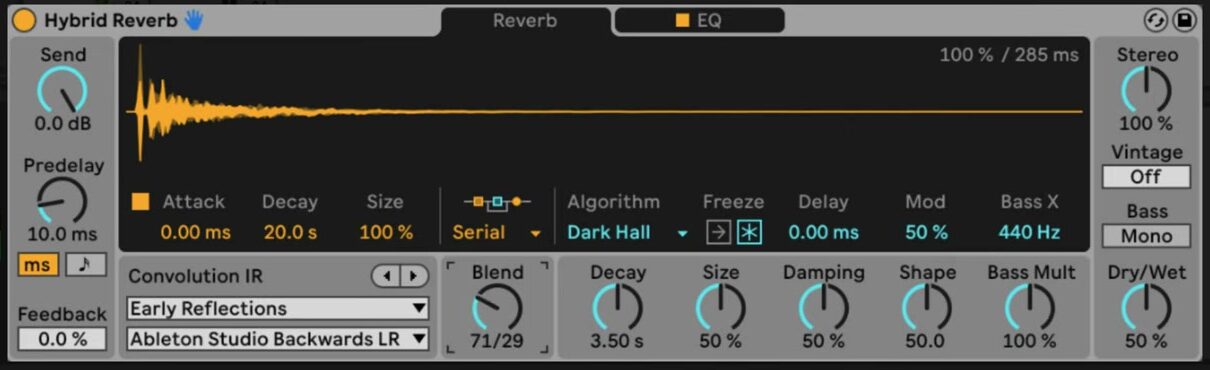
Use Send in Hybrid Reverb's input section to set the gain that feeds the reverb engines. This is separate from a track's return-send controls; the dry signal still passes through the device. Predelay delays the start of the early reflections relative to the input, and can be set as time or as a tempo-synced beat division. Feedback returns the predelay output to its input, allowing the predelay itself to create repeated reflections.
Choose how the two reverb engines work together
The Routing chooser determines whether the convolution and algorithmic engines are combined or used alone:
- Serial routes the convolution engine's output into the algorithmic engine.
- Parallel processes the signal in both engines independently.
- Algorithm uses only the algorithmic engine.
- Convolution uses only the convolution engine.
When Routing is set to Serial or Parallel, use Blend to move between the convolution and algorithmic sections. Blend has no effect in the two single-engine modes. Select a single-engine mode while choosing its basic character, then switch to Serial or Parallel when the two sounds are ready to combine.
Load and shape an impulse response
The convolution engine applies the character of an impulse response (IR) to the incoming sound. Choose an IR category in the upper Convolution IR menu, then choose a specific response in the lower menu. The included categories range from real rooms and halls to plates, springs, drums, and textures.
To try a personal audio file as an IR, drag it from the Browser onto the convolution waveform display. Then shape the response with the convolution controls:
- Attack sets the attack time of the IR envelope.
- Decay sets the decay time of the envelope.
- Size changes the impulse response's relative size.
An unusual audio file can produce a highly recognizable reverb texture, so reduce the Send or Dry/Wet setting before auditioning a new IR in a dense mix.
Select an algorithmic space or animated texture
Choose an algorithm from the Algorithm menu. The current device provides Dark Hall, Quartz, Shimmer, Tides, and Prism; each supplies its own secondary controls. All five provide Decay, Size, Delay, and Freeze controls.
For example, choose Tides when you want modulation in the reverb spectrum. Use Tide to set the intensity, Rate to set the modulation speed, and Phase to set the offset between the left and right modulation signals. Use Damping to reduce high frequencies in the algorithmic reverb tail.
Use Freeze to stop new input from entering the algorithmic engine while the existing tail sustains. Turn on Freeze In as well only when new input should build into that frozen reverberation. Return both controls to their normal state after creating the texture so the effect follows the track again.
Shape the reverb with EQ and output controls
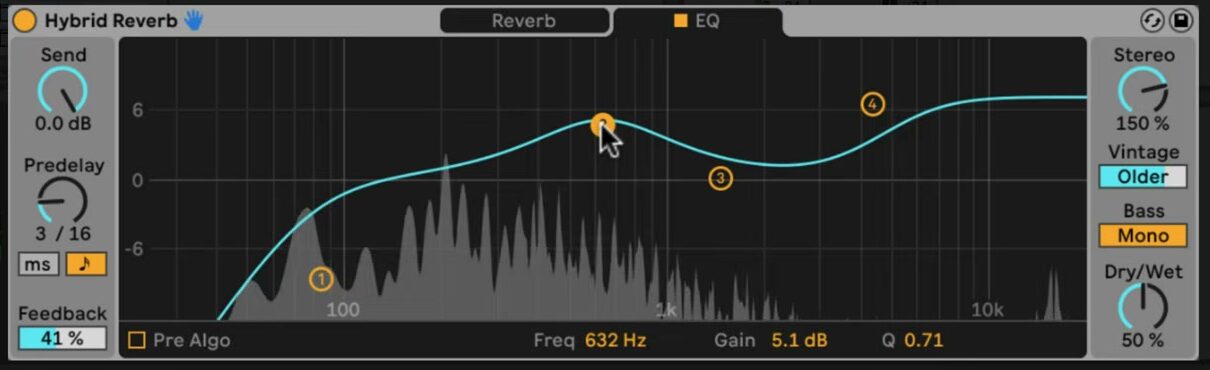
Open the EQ tab to filter or rebalance the reverb. Its four bands include low and high bands that can be pass filters or shelves, plus two midrange peak bands. By default, the EQ is after both reverb engines. Enable Pre Algo to place it before the algorithmic engine instead, which lets the EQ affect the signal going into that engine.
Use the output controls to refine the completed reverb:
- Stereo sets the width of the wet signal; values above 100 percent widen the stereo image.
- Vintage adds the degradation associated with older digital reverbs, with Subtle, Old, Older, and Extreme settings.
- Bass Mono sums Hybrid Reverb output below 180 Hz to mono.
- Dry/Wet balances processed and original audio; use 100 percent on a return track.
Apply Hybrid Reverb in a mix
Start by choosing one engine and setting its decay and level for the role it needs to play. Add the other engine only when it contributes a distinct space or texture, then compare Serial and Parallel routing at the same output level. Finish by removing low-frequency buildup with EQ or Bass Mono, and automate Send, Blend, or Dry/Wet only after the basic reverb balance is stable.
For current device details and edition availability, see Ableton's Hybrid Reverb reference and Live edition comparison. For the original Live 11 demonstration, watch Ableton's Learn Live: Hybrid Reverb.