Session View Keyboard Shortcuts in Ableton Live
Keyboard shortcuts make it possible to navigate Session View, launch clips, and create new material without repeatedly reaching for the pointer. This guide uses the current Live 12 shortcut set. Open a Set in Ableton Live and show Session View before trying the commands.
Video walkthrough
Focus Session View before using shortcuts
Click a clip slot, track title bar, or scene number to establish the part of Session View that should receive keyboard input. You can also move focus to Session View with Alt+1 on Windows or Option+1 on macOS. This is useful when another panel, such as the Browser or Clip View, currently has focus.
Live 12 can use Tab for keyboard navigation when Use Tab to Move Focus is enabled in the Navigate menu or Display & Input Settings. In that mode, Tab and Shift+Tab move between controls rather than switching Session and Arrangement View. Use the direct Session View focus shortcut when you want to return to the clip grid without changing that setting.
Navigate and launch clip slots
Once a clip slot is selected, the arrow keys move the selection around the Session grid. Press Enter to launch the selected clip. If a scene number is selected, Enter launches that entire scene. When the transport is running, Live launches the clip or scene according to the global quantization setting.
| Task | Windows | macOS |
|---|---|---|
| Move focus to Session View | Alt+1 |
Option+1 |
| Select a neighboring clip or slot | Arrow keys | Arrow keys |
| Launch the selected clip, slot, or scene | Enter |
Enter |
| Move between scenes one at a time | Up or Down Arrow | Up or Down Arrow |
| Move between scenes eight at a time | Page Up or Page Down | Page Up or Page Down |
| Stop clips in the selected track | Ctrl+Enter |
Cmd+Enter |
| Jump to the highlighted track title bar | Esc |
Esc |
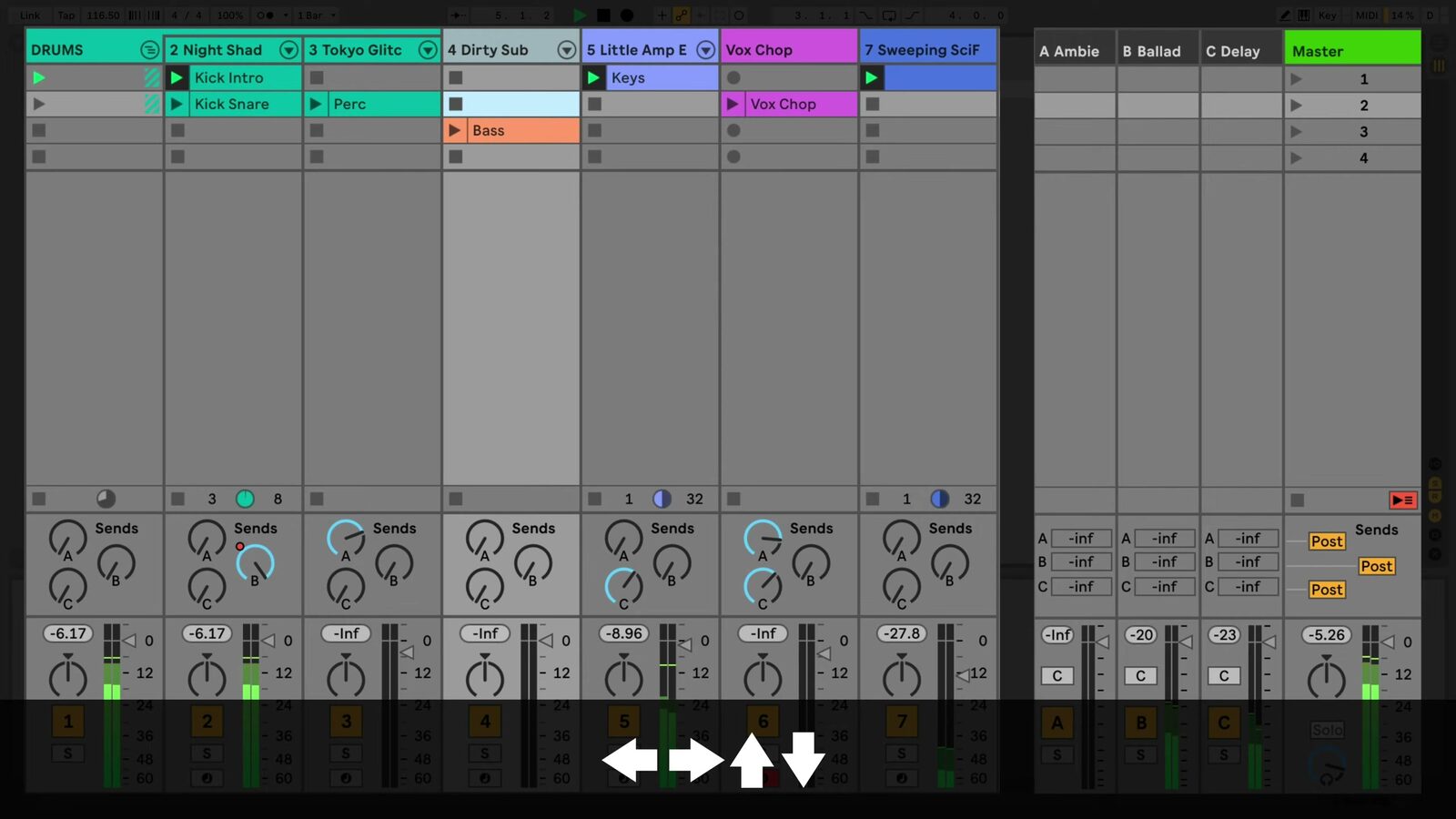
The source walkthrough uses an earlier Live version, where the terminal track is labeled Master. Live 12 uses the Main track label, but the Session View grid and arrow-key navigation remain the same.
Select, copy, and change clip slots
Use the standard editing shortcuts when clips or slots are selected. Ctrl+A on Windows or Cmd+A on macOS selects all clips and slots in Session View. Ctrl+D or Cmd+D duplicates the current selection, and Delete removes it.
To copy a clip into another slot with the pointer, hold Ctrl while dragging on Windows or Option while dragging on macOS. This creates a copy rather than moving the original clip.
Session View also has several commands that depend on the selected slot:
| Task | Windows | macOS |
|---|---|---|
| Add or remove a Stop Button | Ctrl+E |
Cmd+E |
| Deactivate or reactivate the selected clip | 0 |
0 |
| Solo the selected chain | S |
S |
The Ctrl+E or Cmd+E command has a different purpose in Arrangement View, where it splits a clip. Confirm that Session View has focus before using it. Deactivating a clip with 0 leaves the clip in place and lets you restore it with the same key.
Insert clips and scenes from the keyboard
Select an empty slot on a MIDI track, then press Ctrl+Shift+M on Windows or Cmd+Shift+M on macOS to insert an empty MIDI clip. This gives you a starting point for recording or editing MIDI without opening a menu.
Scenes can be created and captured with the following shortcuts:
| Task | Windows | macOS |
|---|---|---|
| Insert a new scene | Ctrl+I |
Cmd+I |
| Insert a scene that captures the currently playing clips | Ctrl+Shift+I |
Cmd+Shift+I |
Use an inserted scene to make space for another variation. Use an inserted captured scene when a useful combination of launched clips is already playing and you want to preserve that combination as a new scene.
Control recording and follow actions
Session View also offers shortcuts for two performance-oriented tasks:
| Task | Windows | macOS |
|---|---|---|
| Start or stop recording to Session View | Ctrl+Shift+F9 |
Cmd+Shift+F9 |
| Toggle Follow Actions for selected clips | Shift+Enter |
Shift+Enter |
| Create a Follow Action Chain | Ctrl+Shift+Enter |
Cmd+Shift+Enter |
Follow Actions determine what a Session clip does after it has played for its configured duration. Use these shortcuts after selecting the clips whose launch behavior you want to inspect or change.
Build the shortcuts into a Session workflow
Begin by moving focus to Session View, then use the arrow keys and Enter to audition the grid without the pointer. When a promising combination is playing, capture it as a scene, insert a MIDI clip for a new part, or duplicate an existing clip into an empty slot. This keeps navigation, clip creation, and performance decisions in one continuous workflow.
For the complete and current list, see Ableton’s Live Keyboard Shortcuts, Session View, and Accessibility and Keyboard Navigation documentation. For the source walkthrough, see Ableton’s Learn Live: Session View shortcuts video.